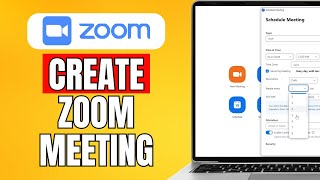
How To Make Zoom Meeting Link: Step‑by‑Step Guide for Every User
Whether you are a teacher, a remote worker, or an entrepreneur, knowing how to make a Zoom meeting link quickly is essential for smooth communication. In this article you will learn the exact steps to generate a link, share it safely, and integrate it with calendars – all without the need for extra software.
Why a Zoom meeting link matters
A Zoom meeting link is more than just a URL; it is a secure gateway that lets participants join a video call with one click. Want to know why it is so popular? The link includes an automatically generated meeting ID and, optionally, a password that protects your session from unwanted guests.
Prerequisites before you start
- A free or paid Zoom account (sign up at zoommeeting portal if you don’t have one).
- Internet access on a computer, tablet, or smartphone.
- Optional: Calendar app (Google Calendar, Outlook, or Apple Calendar) for automatic invites.
How To Create a Zoom Meeting Link on Desktop
- Log in to your Zoom account at zoom.us or open the Zoom desktop client.
- Click the “Schedule” button located on the home screen.
- In the “Schedule a Meeting” window, fill out the following fields:
- Topic: Give your meeting a clear title.
- Date & Time: Choose when the meeting will start.
- Duration: Set the expected length (Zoom will not cut the call if it runs longer).
- Time Zone: Verify the correct zone to avoid confusion.
- Under “Meeting Options”, decide whether you want a password, enable a waiting room, or allow participants to join before host. These settings increase security.
- Scroll down to “Calendar” and select your preferred calendar (Google, Outlook, or iCal). This step automatically adds the meeting link to the calendar invite.
- Click “Save”. The meeting is now scheduled and a unique Zoom meeting link appears on the confirmation page.
- Copy the link by clicking “Copy Invitation” or the URL itself, then paste it into an email, chat, or your website.
How To Create a Zoom Meeting Link on Mobile
- Open the Zoom app and sign in.
- Tap the “Schedule” icon at the bottom of the screen.
- Enter the meeting details (topic, date, time, and optional password).