How To Screenshot On Windows Just One Monitor
If you work with a multi‑monitor setup, capturing a single screen can be a bit tricky. Windows provides built‑in shortcuts that let you snap only the monitor you need, without the hassle of cropping later. This tutorial walks you through the most reliable methods, from the default Win+PrtScr shortcut to the versatile Snip & Sketch tool.
Why Capture One Monitor Only?
When you have two or more displays, a full‑screen screenshot (the default Win+PrtScr command) captures every monitor at once. This can lead to large file sizes, unnecessary background clutter, and extra editing steps. By targeting a single monitor, you get a clean image that’s ready to share or archive.
Method 1: Using Win + Shift + S (Snip & Sketch)
The quickest way to grab just one screen is the Win + Shift + S shortcut. It opens the Snip & Sketch overlay, letting you choose the shape of your capture.
- Press Win + Shift + S. The screen dims and a small toolbar appears at the top.
- Select the Rectangular Snip icon (the first option).
- Click and drag from the top‑left corner of the monitor you want to capture to its bottom‑right corner. As you drag, you’ll see a blue rectangle outlining the area.
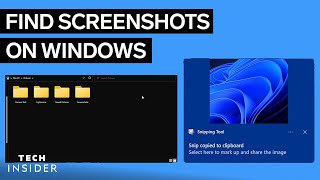
- Release the mouse button. The screenshot is copied to the clipboard and a notification pops up.
- Click the notification to open the image in Snip & Sketch, where you can annotate, save, or share it.
This method works on any version of Windows 10 and Windows 11, and it automatically limits the capture to the monitor you select.
Method 2: Using the Snipping Tool (Windows 11)
Windows 11 renamed the classic Snipping Tool but kept its core functionality. It’s ideal if you prefer a dedicated app over the clipboard shortcut.
- Open the Snipping Tool from the Start menu.
- Click the New button and choose Rectangular Snip.
- Drag across the desired monitor just as you would with Win + Shift + S.
- When you release the mouse, the snip appears in the Snipping Tool window. Use the toolbar to annotate, copy, or save the image.
Method 3: Capture the Active Window (Alt + PrtScr)
If the application you want to capture is maximized on one monitor, the Alt + PrtScr shortcut captures only that window. This is useful for software demos or troubleshooting screenshots.
- Make sure the target window is active (click on it).