How to Sign Out of Your Google Account: A Step‑by‑Step Guide
Whether you’re using a desktop browser, an iPhone, or an Android device, knowing how to sign out of your Google account quickly protects your privacy and keeps your data secure. This article walks you through the process for each platform, so you can log out confidently whenever you need to.
Why Signing Out Matters
Signing out of Google prevents unauthorized access to your Gmail, Drive, Photos, and other services. It also helps you avoid accidental data sync on shared or public devices. The steps are simple, but the impact on your security is significant.
How to Sign Out Using a Web Browser
Most people access Google services through a browser on a laptop or desktop. Follow these steps to log out safely.
- Open the Google homepage (google.com) or any Google service such as Gmail.
- Locate your profile picture in the top‑right corner of the page.
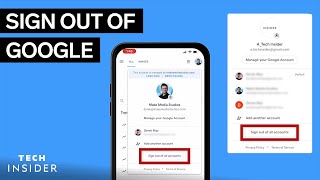
- Click the profile picture. A dropdown menu appears showing your account name, email address, and a list of options.
- Select “Sign out” from the dropdown. The page will refresh, and you’ll be returned to the generic Google sign‑in screen.
- If you use multiple accounts, repeat the process for each one, or choose “Sign out of all accounts” if the option is available.
After signing out, you may also want to clear your browser’s cookies and cache, especially on shared computers. This extra step removes any lingering session data.
Signing Out on an iPhone
iPhone users often rely on the Gmail app, the Google app, or Safari. Below are the two most common methods.
Using the Gmail App
- Open the Gmail app on your iPhone.
- Tap the menu icon (three horizontal lines) in the top‑left corner.
- Scroll down and tap “Settings.”
- Select the account you want to sign out of.
- Tap “Manage accounts” at the bottom.
- Choose “Remove from this device.” Confirm the removal when prompted.
Using Safari (Web Browser)
- Open Safari and go to google.com or any Google service.
- Tap the profile picture in the top‑right corner.
- Select “Sign out.”
- For added security, go to Settings → Safari → Clear History and Website Data.








![How To Sign Out of Your Google Account on Google Chrome [2025 Guide]](https://i.ytimg.com/vi/6sqnb_Fuy8k/mqdefault.jpg)
